![logo-en--v1700065677.png]](https://support.knowledgecity.com/hs-fs/hubfs/logo-en--v1700065677.png?height=40&name=logo-en--v1700065677.png)
Introduction
After scheduling your Class course events, the next phase involves managing learners and tracking their participation. This guide covers how to view invited users to events, view and manage registration statuses and handling approvals from user profiles. The Class Events section in KnowledgeCity LMS ensure efficient oversight of all your events lifecycle.
Assessing Class Events
- Log in to your KnowledgeCity LMS administrator account.
- Navigate to the "Class Events" section from the LMS left-side panel.
- The Class Events section page will open including all the class events listings including registration details.
Viewing & Managing Class Events
The Class Events section presents a Summary table of all your events. Key details include the Class Name, scheduled Date & Time, Event Type, and the status breakdown of registrations (Approved, Pending, Rejected) for each event.Note: For quick administrative action, the Class Events section in the main menu displays a badge with the total number of pending registration requests, visible only when requests are awaiting review.
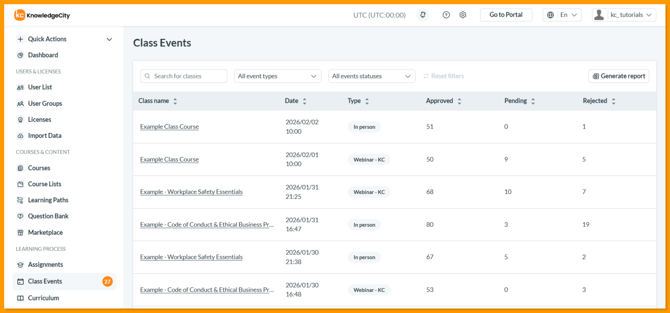
An example illustration of the Class Events section in KnowledgeCity LMS.
- Inside Class Events section, you will see the following controls to manage your scheduled events:
-
Search Bar: Just type a Class Name here and the table below will instantly update to show only matching results.
- All event types: This is a dropdown filter that lets you narrow the list to show only certain kinds of events, such as Webinar or In person.
- All event statuses: This is a dropdown filter that lets you view events based on their current state, such as Future events or Passed events.
- Generate Report: You can generate an Excel report of all the filtered events or all events and their details by clicking on the Generate Report button.
-
Table Sorting: You can also sort the events list by clicking on any column header Class name, Date, Type, Approved, Pending, or Rejected to reorder the table alphabetically for easier navigation.
-
-
Click on the desired Class Name inside class event section.
-
You will be redirected to the class event's Participants tab, which lists all registered students and use the controls to manage their registrations.
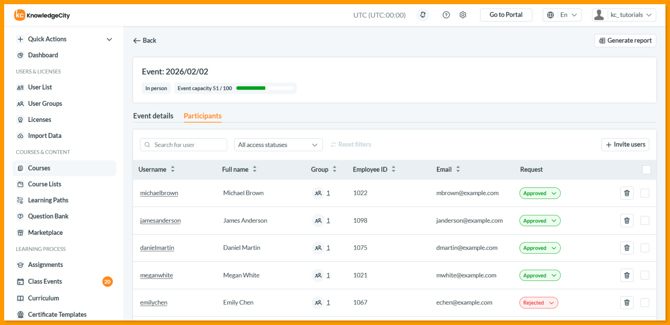
An example illustration of Participants tab inside a Class Event.
Viewing Event Registrations from User Profiles
To view and modify event registrations from a user’s profile:
-
Find and select the desired User from the User list to open their profile details.
-
Once in the user’s profile, click the Event List tab. This tab displays all the class events for which the student is registered.
-
Click on the desired Class Name inside event list tab.
-
You will be redirected to the class event's Participants tab, where you can use the controls to manage the user's registration.
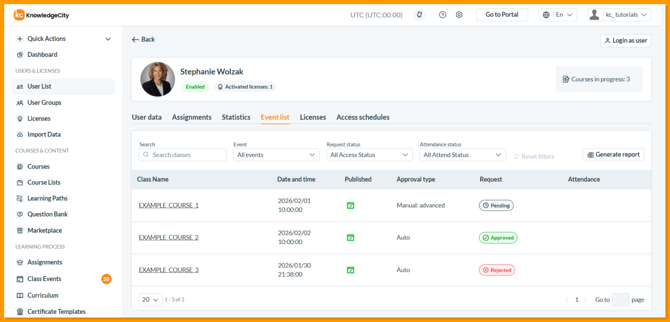
An example illustration of Event List tab inside a User Profile.
Related Articles:
-
For the class events initial setup, refer to: Creating a Class Course in KnowledgeCity LMS.
-
Scheduling and Managing Online Class Events – Set up webinars and virtual classroom sessions.
- Scheduling and Managing Offline Class Events – Organize in person classroom training.
Conclusion
Class Events feature provides an efficient and centralized way to oversee all your class events and registrations with ease. You have now learned the effective process to view, manage, and track participants for any class event directly within your LMS. For any further questions or assistance with advanced event management, your KnowledgeCity Success Team is ready to help.