![logo-en--v1700065677.png]](https://support.knowledgecity.com/hs-fs/hubfs/logo-en--v1700065677.png?height=40&name=logo-en--v1700065677.png)
Introduction
The Courses section in the KnowledgeCity LMS is the central hub where all training content resides, is managed, and is delivered to your organization. Mastering this section is critical. It empowers administrators to structure, curate, and deploy knowledge effectively, ensuring every employee has seamless access to the right learning at the right time. Understanding how to navigate and utilize the Courses page is the foundational skill for maintaining a dynamic, organized, and impactful learning ecosystem that drives continuous growth and compliance across your entire organization.
Accessing the Courses Section
- Log in to your KnowledgeCity LMS administrator account.
- Navigate to the "Courses" section from the LMS left-side panel.
- The Courses section page will open including all the course listings.
Custom Courses
- After accessing the Courses section in the LMS
- Open the "Custom" tab inside the Courses page.
- Once on the Custom tab, you will see the following controls to manage your custom learning courses catalog:
-
-
Active Tab: Displays all custom courses that are currently drafted, published or available for assignment to learners.
-
Archive Tab: Shows courses that have been deactivated or archived. Archived courses are hidden from learners but preserved in the system for historical records and reporting. Use this tab to permanently delete, review or restore archived courses if needed.
-
Search Bar: Just type a Course's Name or its Course ID here and the table below will instantly update to show only matching results.
-
Course Type Filter: You can also use this dropdown menu to filter the course list by the following course types: All course types, Lessons, Class, or External.
-
-
- Generate Report: You can generate an Excel report of all the filtered courses or all custom courses and their details by clicking on the Generate Report button.
-
Table Sorting: You can also sort the course list by clicking on any column header Course name, Course ID, or Type to reorder the table alphabetically for easier navigation.
- Generate Report: You can generate an Excel report of all the filtered courses or all custom courses and their details by clicking on the Generate Report button.
-
- Archive or Remove Course(s): Use the Actions menu to the right of each course to individually Archive or Remove it. To process multiple courses at once, select the corresponding checkboxes in the table's right column for bulk actions. When archiving, you can choose to schedule it for later or archive immediately, with the option to notify affected users.
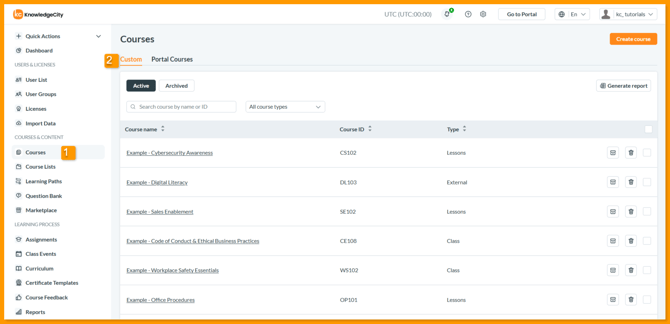
An example illustration of the Custom tab inside the courses page of KnowledgeCity LMS.
Portal Courses
- After accessing the Courses section in the LMS
- Open the "Portal Courses" tab inside the Courses page.
- Once on the Portal Courses tab, you will see all the subscribed learning portal courses added to your account and following controls to view your learning portal courses catalog:
-
-
Search Bar: Just type a Course's Name or its Course ID here and the table below will instantly update to show only matching results.
-
Course Type Filter: You can also use this dropdown menu to filter the course list by the following course types: All course statuses, Archived courses or Active courses.
- Generate Report: You can generate an Excel report of all the filtered courses or all portal courses and their details by clicking on the Generate Report button.
- Table Sorting: You can also sort the course list by clicking on any column header Course name, Course ID, or Type to reorder the table alphabetically for easier navigation.
- Remove Course(s) from account: To the right of each course, the Actions menu allows you to individually Remove a course from your account. You can also select multiple courses using the checkboxes in the table's right column to perform bulk removal at once.
-
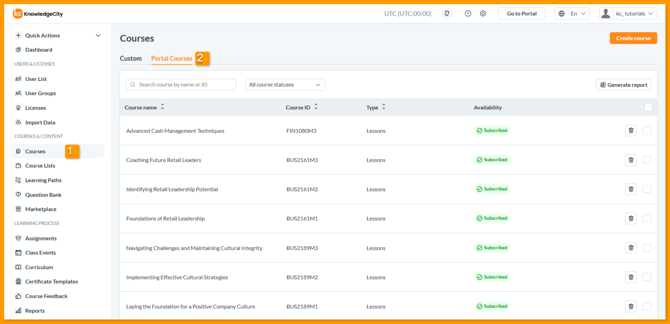
An example illustration of the Portal Courses tab inside the courses page of KnowledgeCity LMS.
Create a new Course
- Click the "Create course" button to open the new course creation popup.
- Fill in Required Details:
-
- Course name*: Enter the name of your course (max 220 characters).
-
Course ID*: Enter a unique identifying Course ID (max 50 characters).
- Default language*: Select the primary language for the course (e.g., English).
- Course type*: Choose the format: Lessons (self-paced), Class (instructor-led), or External (third-party training).
- Complete the Action: Click the "Create course" button at the bottom to save and create your new course. Use the "Cancel" button if you wish to discard the form and close the popup.
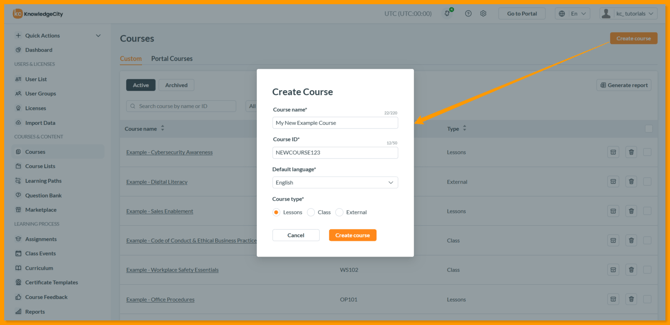
An example illustration of the "Create Course" modal for the course creation process.