![logo-en--v1700065677.png]](https://support.knowledgecity.com/hs-fs/hubfs/logo-en--v1700065677.png?height=40&name=logo-en--v1700065677.png)
How to Export Courses from KnowledgeCity (SCORM/xAPI/TinCan)
The ability to export courses is critical for maintaining control of your training content and ensuring seamless LMS migration or integration. KnowledgeCity fully supports this need by providing course content in industry standard SCORM and xAPI (Tin Can) formats. This guide will walk you through the step-by-step process of generating a compliant SCORM course package directly from your KnowledgeCity LMS. Completing these steps ensures your content remains functional and accessible on any compliant LMS platform.
Steps to Export SCORM Courses
- Login with LMS Super Admin role.
-
Navigate to the Course export page.
Go to LMS Settings > Integrations > Course export.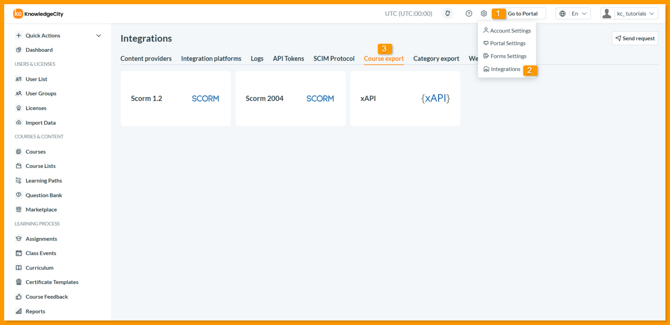
-
Choose your export format.
In the Course export page, select your desired format: SCORM 1.2, SCORM 2004, or xAPI (TinCan). -
Once the desired format is selected, A pop-up window will appear to select the courses to export.
- Search & Filter: Find specific courses by name, filter by category or language, or select Show only not exported courses to only see new courses that haven't been exported before.
- Course Selection: Review the course list and click the Add button next to required course to move it to your export selection panel on the right.
- After making your course selections, you can proceed with the export buttons at the bottom of the export pop-up window.
- Export selected courses: Use the search and filter options to find and select/ add individual courses for export.
- Export new courses: Click the Export new courses button to automatically download only newly available subscribed courses that haven't been exported before.
-
Select all and export: Click the Select all and export button to download all your subscribed courses.
After clicking export button, a confirmation Export courses - Language selection pop-up will appear. Ensure the correct language is selected, then click the "Export" button to begin the download. KnowledgeCity LMS will automatically compile and downloaded as a standard .zip package in your chosen course format.
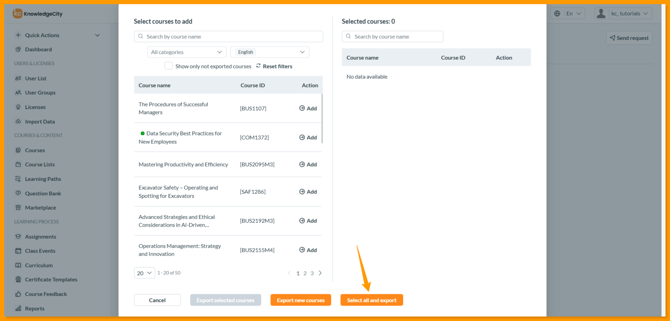
An example illustration of SCORM course export pop-up window.
Export Metadata File
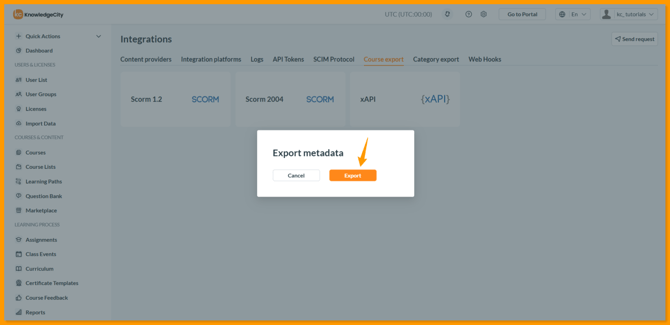
After the course export is complete, Export metadata pop-up window will automatically appear from which a metadata file (Excel sheet) can be exported by click the Export button. This will downloads a sheet containing URLs to all corresponding course preview images/ thumbnails, which can assist with bulk uploads to other LMS or automations.
Testing SCORM Export in SCORM Cloud
An exported SCORM course can be uploaded to another LMS, or to SCORM Cloud, to validate that it launches correctly as expected. This allows administrators to verify course functionality and compliance before deploying it within the compliant platforms.

An example course opened in the SCORM Cloud desktop platform. SCORM Cloud is a useful tool powered by Rustici Software and commonly used for testing playback of SCORM files.
Common Issues
-
SCORM courses are not be available for export? → The courses should be:
-
Published to the portal from Marketplace and found in Category Manager.
-
Included in an active subscription’s content access.
-
-
SCORM course not loading? → Ensure the course is published to the portal and found in Category Manager.
-
SCORM course lessons locked? → Ensure an active subscription exists for the account.